
This is an optional functionality to auto-populate those tasks that you do on a recurring basis, e.g weekly client calls, team meetings, daily email admin to save you time journaling this every time.
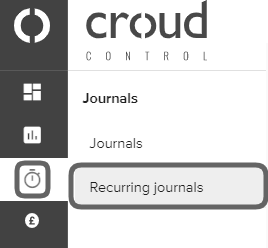
To create a recurring journal, go to the main navigation bar and click on “Journals” and then “Recurring Journals.
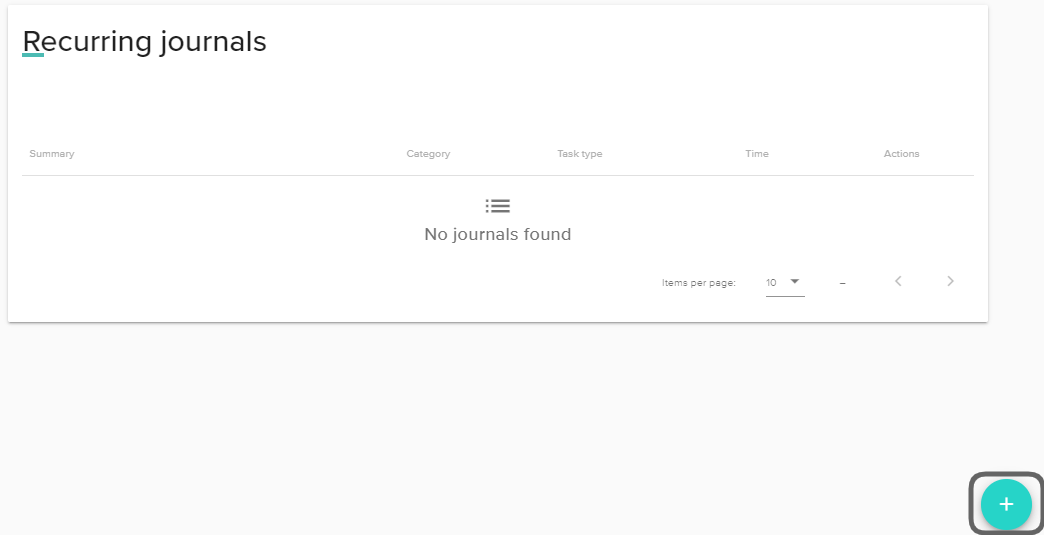
The recurring journals home screen will then be displayed. If you have already created any recurring journals, they will be displayed here.
To create a new recurring job, click on the teal add journal button in the bottom right hand corner.
The recurring journal sidebar will slide out and you will need to fill in the required fields. If you don’t fill in any of the required fields, you will be unable to create a recurring journal.
You will find the ‘Add another’ check box at the bottom of the journal creation form. If you leave this box checked and save your journal entry, not only will the journal side pane stay open, but the next journal will retain as many of the previous journal details as possible. When unchecked the journal side pane will close when you click “Save”.
If you wish to add another journal after saving, tick the “Add another” check box and a new journal creation slide out bar will appear keeping the same client, channel, category and task type as the previous one.
Add in your schedule settings for your new recurring journal using the schedule options. You can edit these at any time. Once saved, your recurring journal will create your new journals entries following the schedule you have set.