
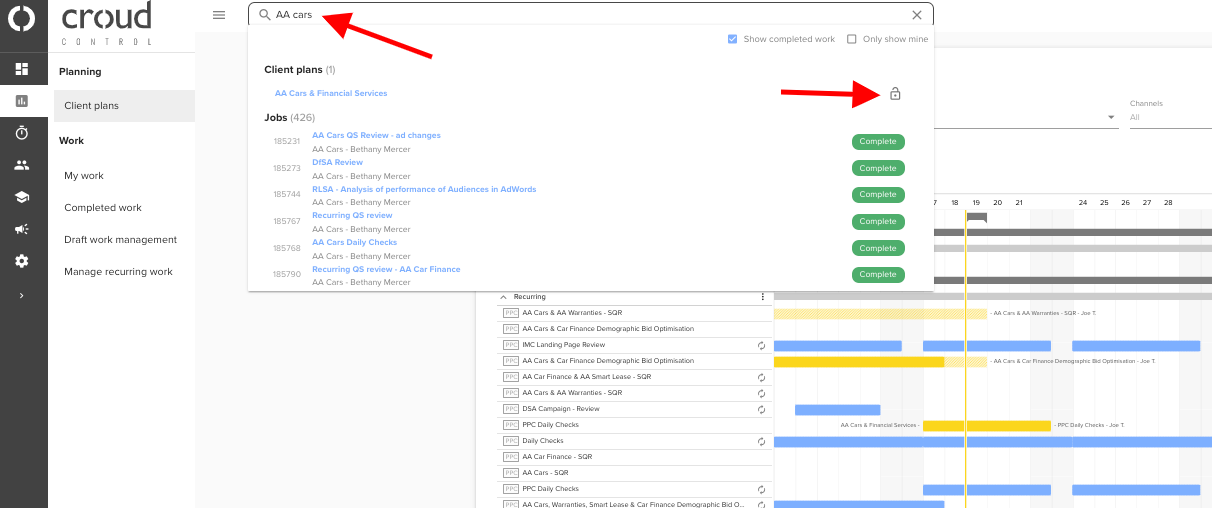
Wherever you see the below icon you will be able to access managed credentials.

This symbol currently appears in the search bar in the top navigation bar and on an active client's profile. To access a task credential, search for the client's name in the search bar and click on the task credential icon.
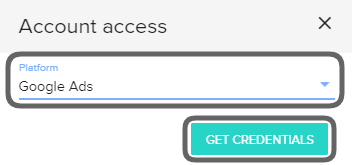
Choose your platform and click “Get Credentials”.
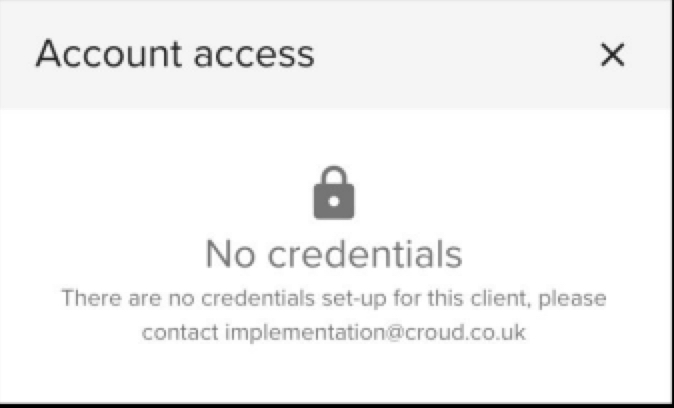
If you’re presented with the message below it means that the client hasn’t had credentials created as
yet. Should you need urgent access please contact the LastPass Team. If you need credentials creating
or need to check on the status of the clients credentials please contact implementation@croud.com.
If a client does have credentials set up, you will be presented with a screen that displays all the information you will need to access the clients account.
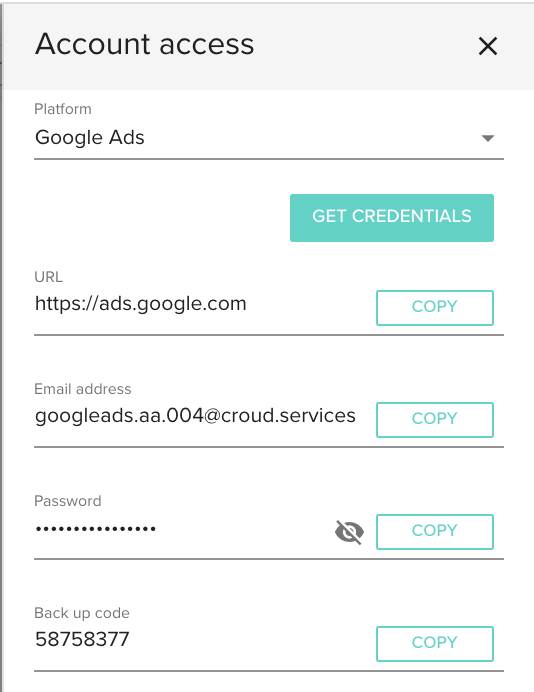
The 8 digit back-up code displayed here, which is used on all Google accounts, will also be sent via a
Notification.
Use the copy function at each stage to help you through the sign-in process.
We advise logging into the platform using an incognito browser session.
On the platform, select the option for “Use another account”, it is at the bottom of the list:
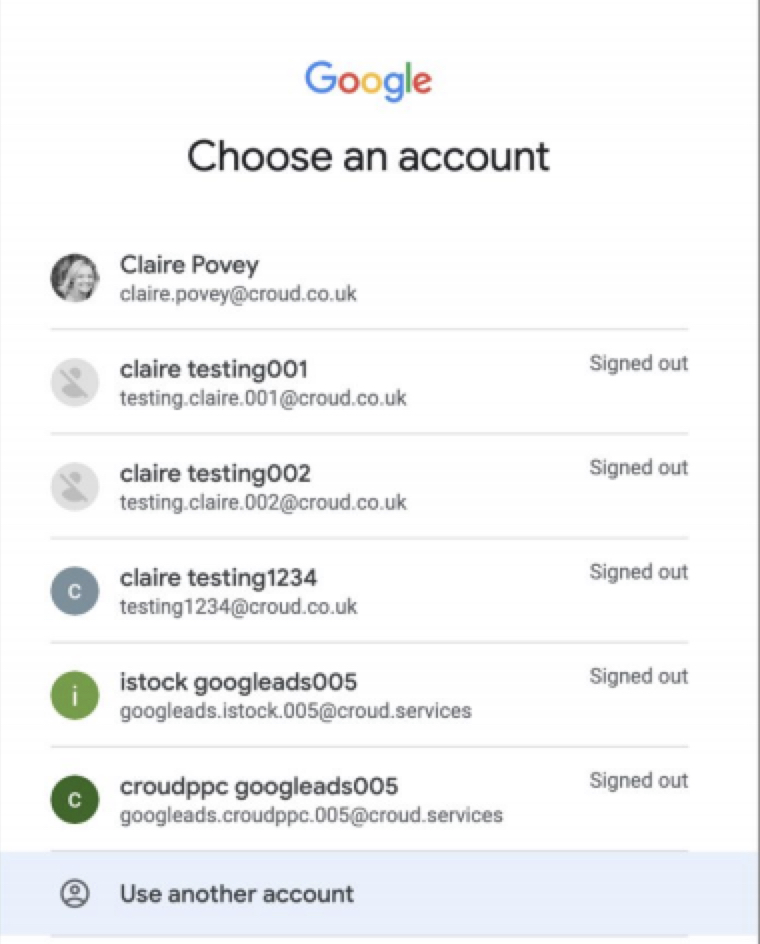
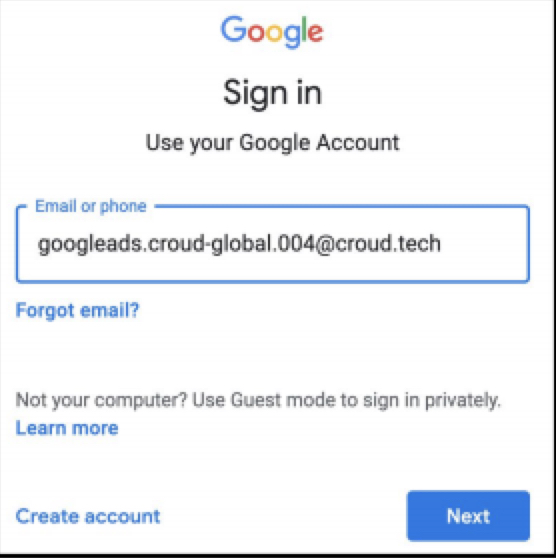
Copy the email address and paste it here:
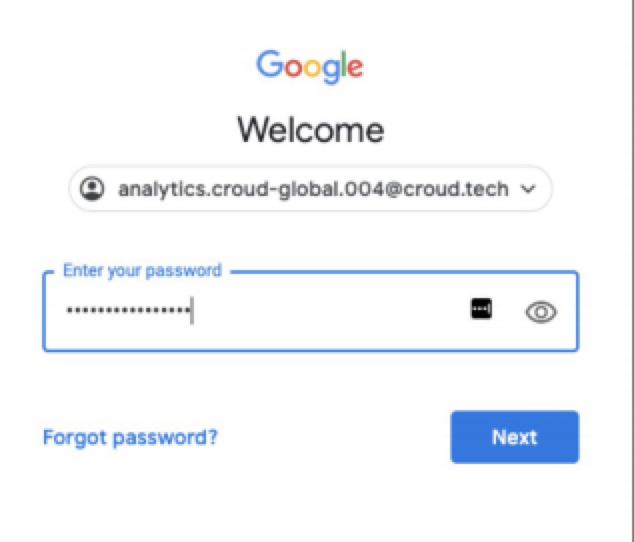
Do the same with the password:
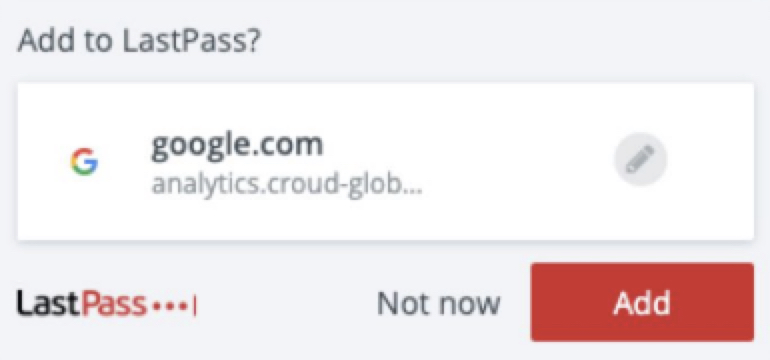
If you have LastPass running, please click “Not now” - you do not need to add these accounts to LastPass.
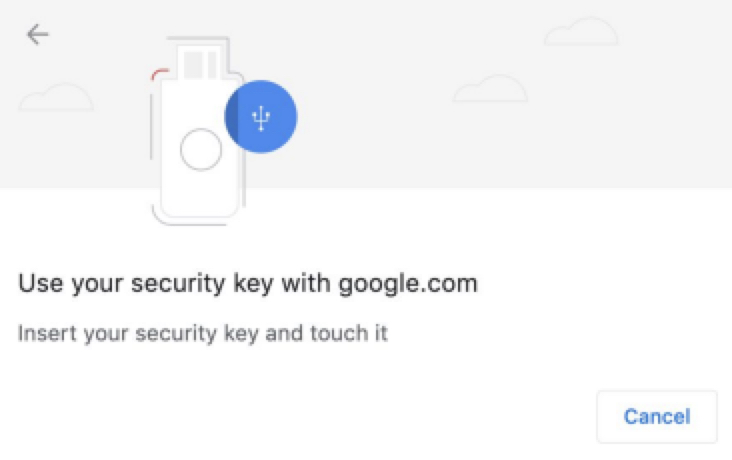
If the account is protected by 2FA then you will need to complete the following steps. When presented
the below message, click cancel.
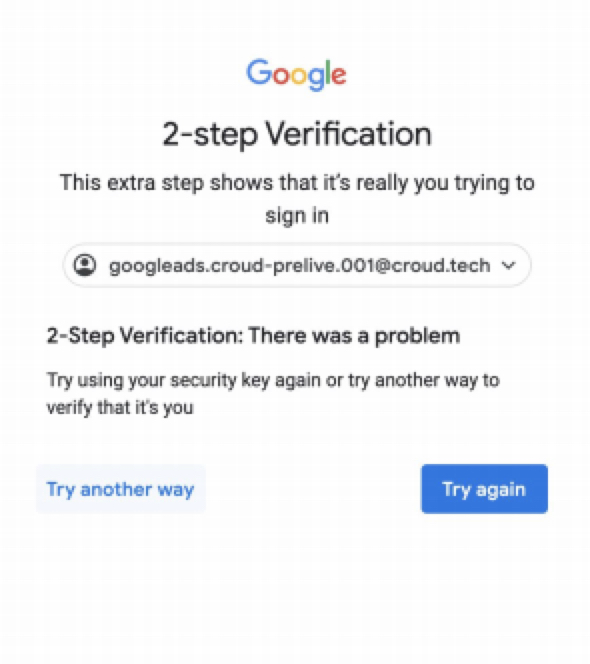
On the screen that appears next, click, Try another way.
Copy the backup code from the Croud Control interface.
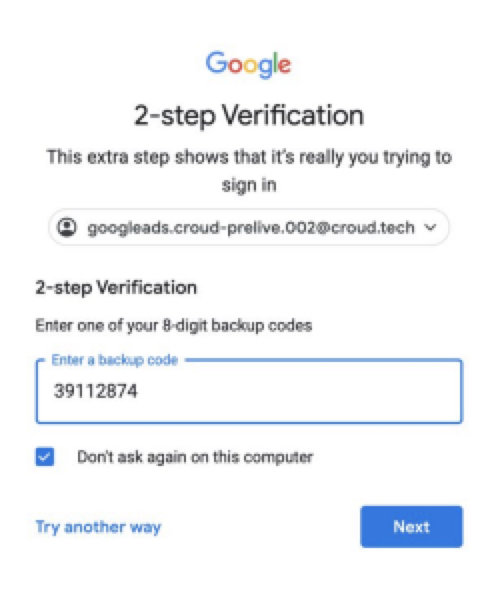
Click Next, and you should now have access to the platform.
This will last for 3 hours before you are logged out. You will then need to return to this screen to request credentials again.