
Every task will consist of at least one task and review stage in Croud Control. You can add as many review stages as you wish.
To create a task, navigate to your my tasks page.
Click Create Task


This will open the task creation page.
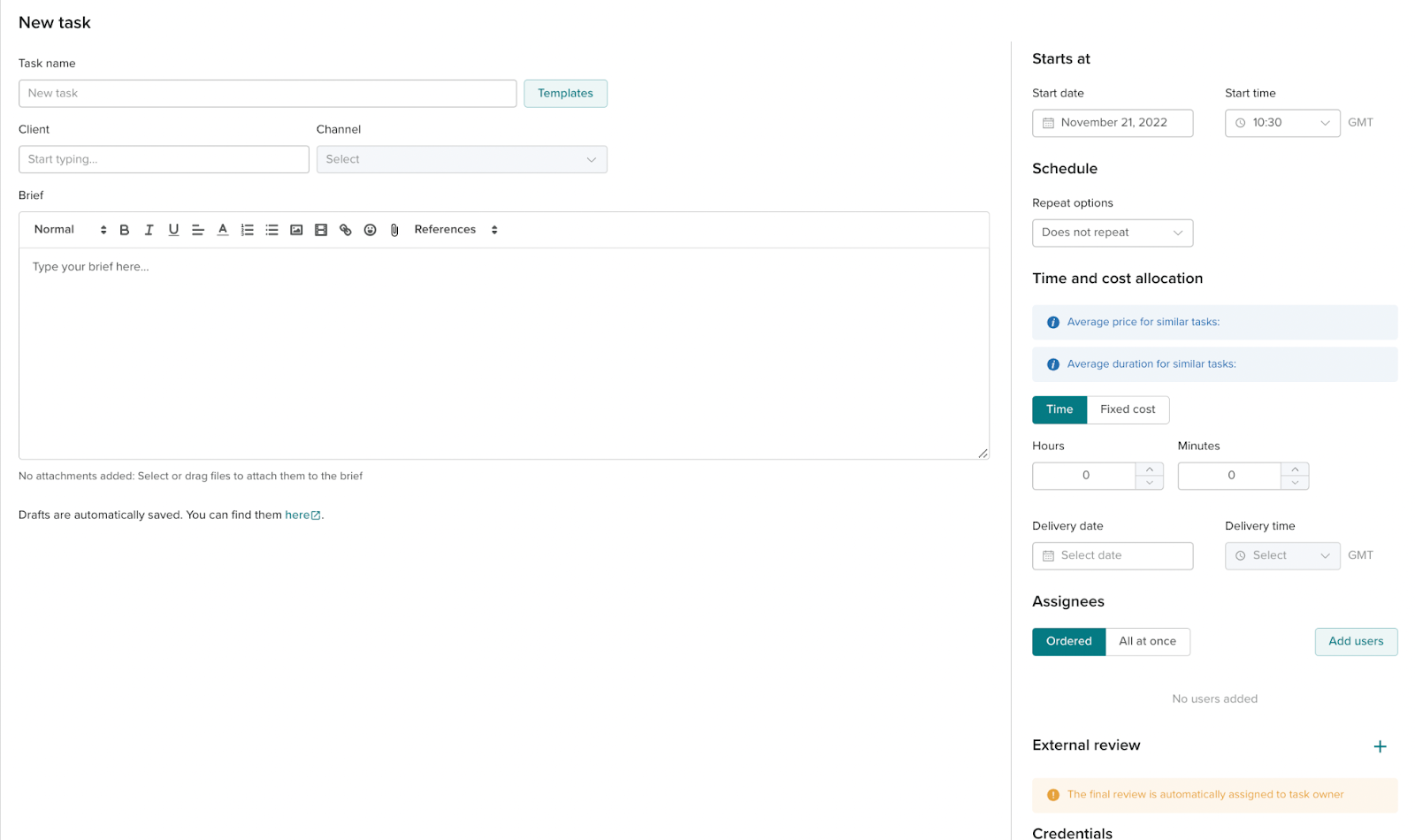
The required fields to complete to send a task are:
Task name
Channel and Client
brief (we do suggest using templates from the auto-suggested or template library)
Deadlines
Assignees (Croudies)
You can also add access for assignees to complete their tasks.
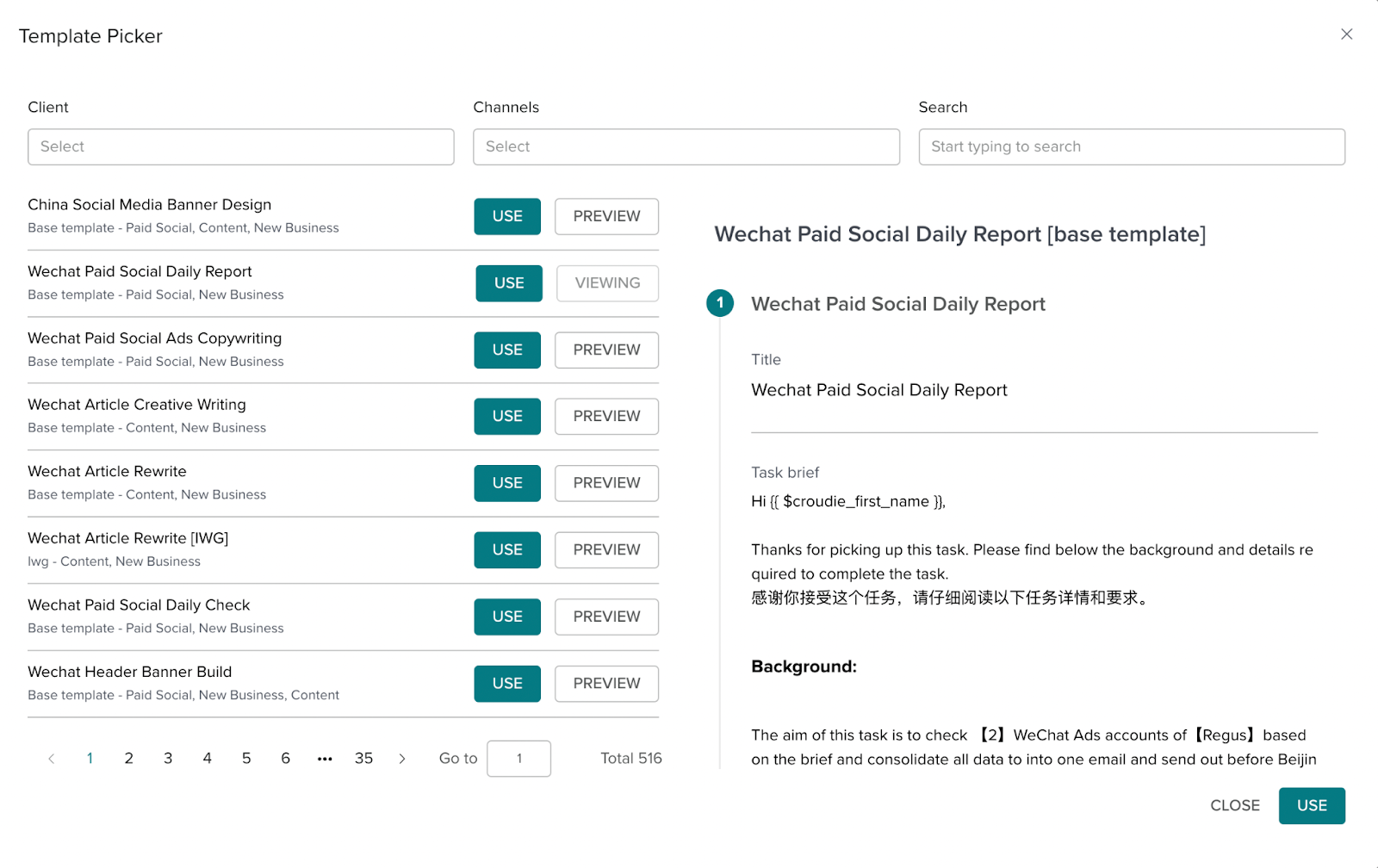
If you do not want to write a brief there are task templates that users can add to relevant tasks. If there is not an existing template for the new task that you are building, do consider sending a copy of the task brief to the Network team who can create the template in Croud Control for future use!
These are found by pressing the template button, next to the task name.
Autosaving has been added to task creation so you will never lose progress on tasks.
When creating tasks you will access the croudie picker.
Within the Croudie picker, you can filter for:
Name
Hourly rate
Language skills
Qualifications (from our Croud Academy)
Location
Previous client experience
Croudie or FTE (e.g if you wanted to assign another teammate a Review task).
Each Croudie has a relevance score next to its name. The relevance score is an algorithm that considers 30 different data points such as rating, task submission deadline, task template rating, and if the user has worked on the client before.
This is to provide you with the most relevant pool of Croudies to choose from. Once you have filtered for the Croudies you need for the task, you can view more information about the Croudie by clicking on the down arrow.