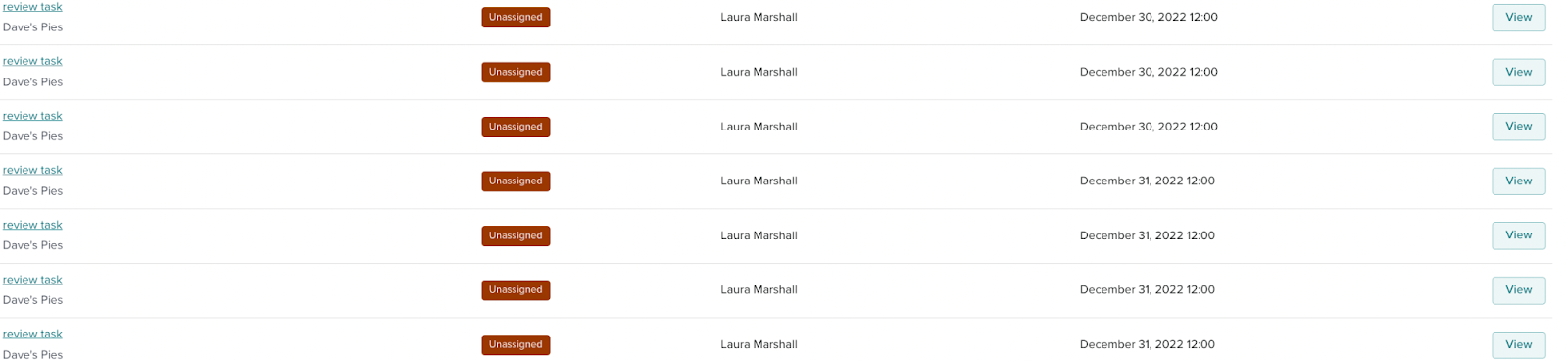
To view your current tasks, in the main navigation bar, click on Tasks > My Tasks.
Users can view their tasks on the ‘My Tasks’ page.

Any tasks that are not in draft state or complete will be displayed here.
You will be first shown your current tasks. Next to the header of the current task, a number is displayed in brackets - this is to let you know how many current tasks you have assigned to you. Tasks are defaulted to show 10 tasks with the earliest deadline showing first. To increase the number of tasks shown, amend the items per page.
Within the current tasks section, you are shown the following:
Status - this is to provide you with enough information for you to effectively manage tasks from the dashboard and view what state the task is in.
Name - the title of the task
Client - the name of the client this task is for
Job Owner - the name of the FTE who has ownership of the job that the task belongs to
Due on deadline - this shows the expected date of when the task is required to be completed with a velocity underneath to show you if it is on deadline, is on time or is late
View Task - once clicked, you are taken to the task management page. From here, you will be able to pass work, and send messages and depending on whether it is a QA task you can request revisions or send them to the job owner for review.
How to view my overdue tasks?
Users can view their overdue tasks on the ‘My Tasks’ page.
The tasks are displayed in order by the due date, so the ones that are overdue or close to the due date will be the first on the list of current tasks.
How to view my unassigned tasks?
Users can view their unassigned tasks on the ‘My Tasks’ page. There is a status filter that users can use that will allow them to filter depending on the task they want to view.
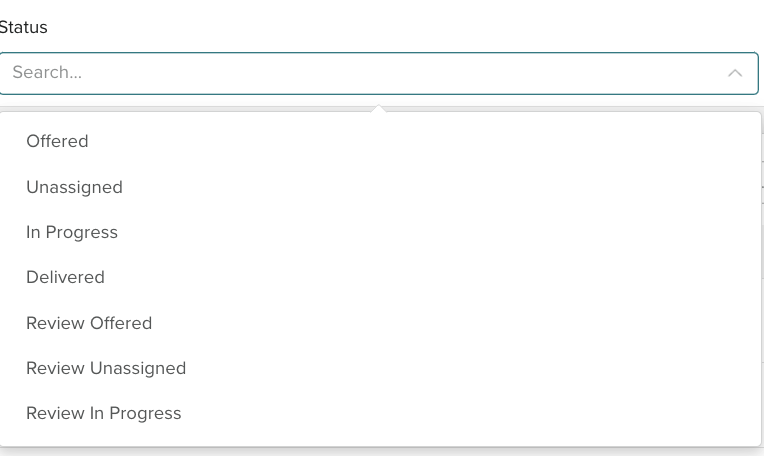
All unassigned tasks will show with the status ‘unassigned in the ‘my tasks page’.