
ou can add more Croudies to any your tasks. To access your tasks travel to the My Task’ page.

Click View on a task to open and have options to edit it.
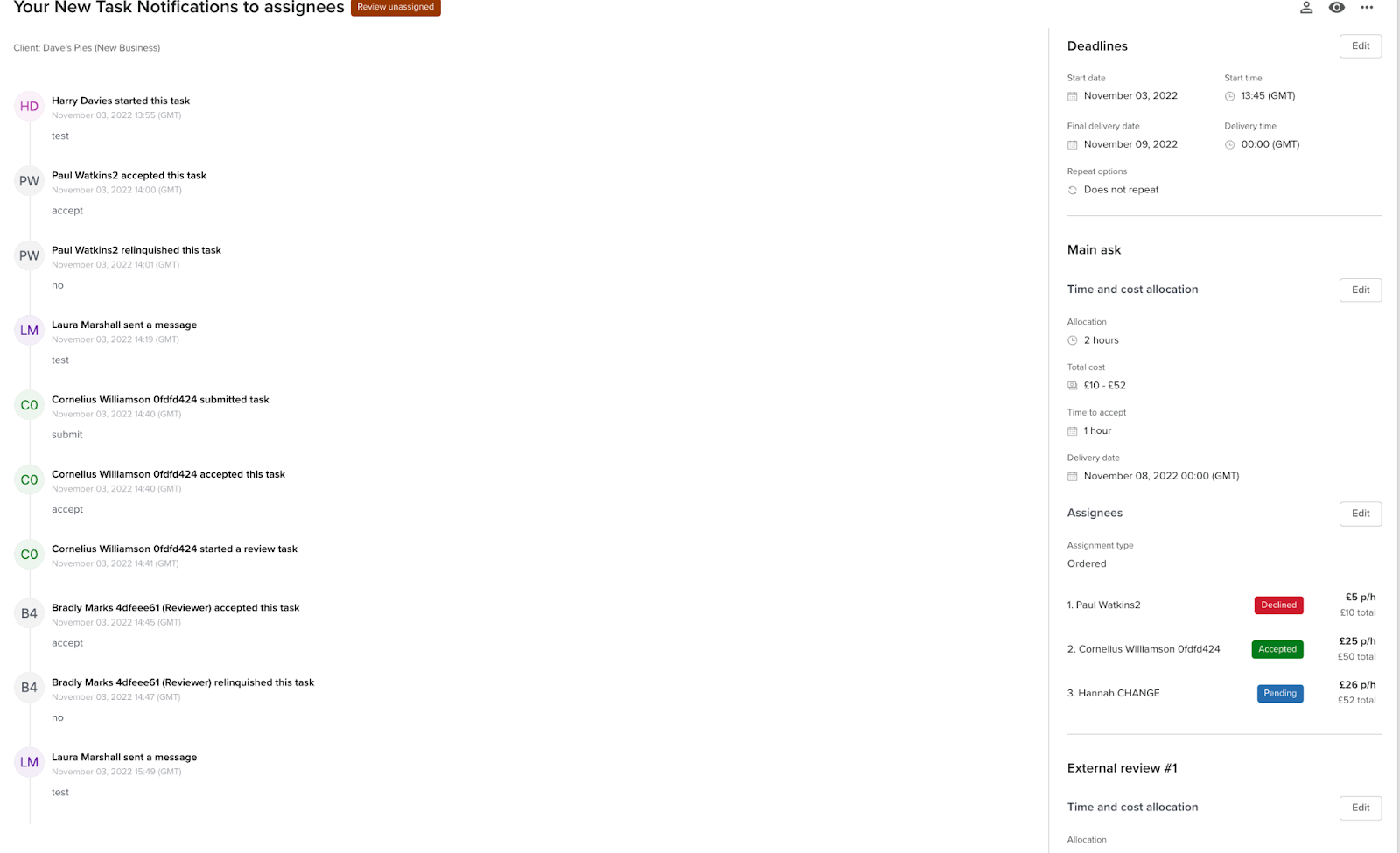
Click “Edit” on the assignees section to open up the edit assignees modal.
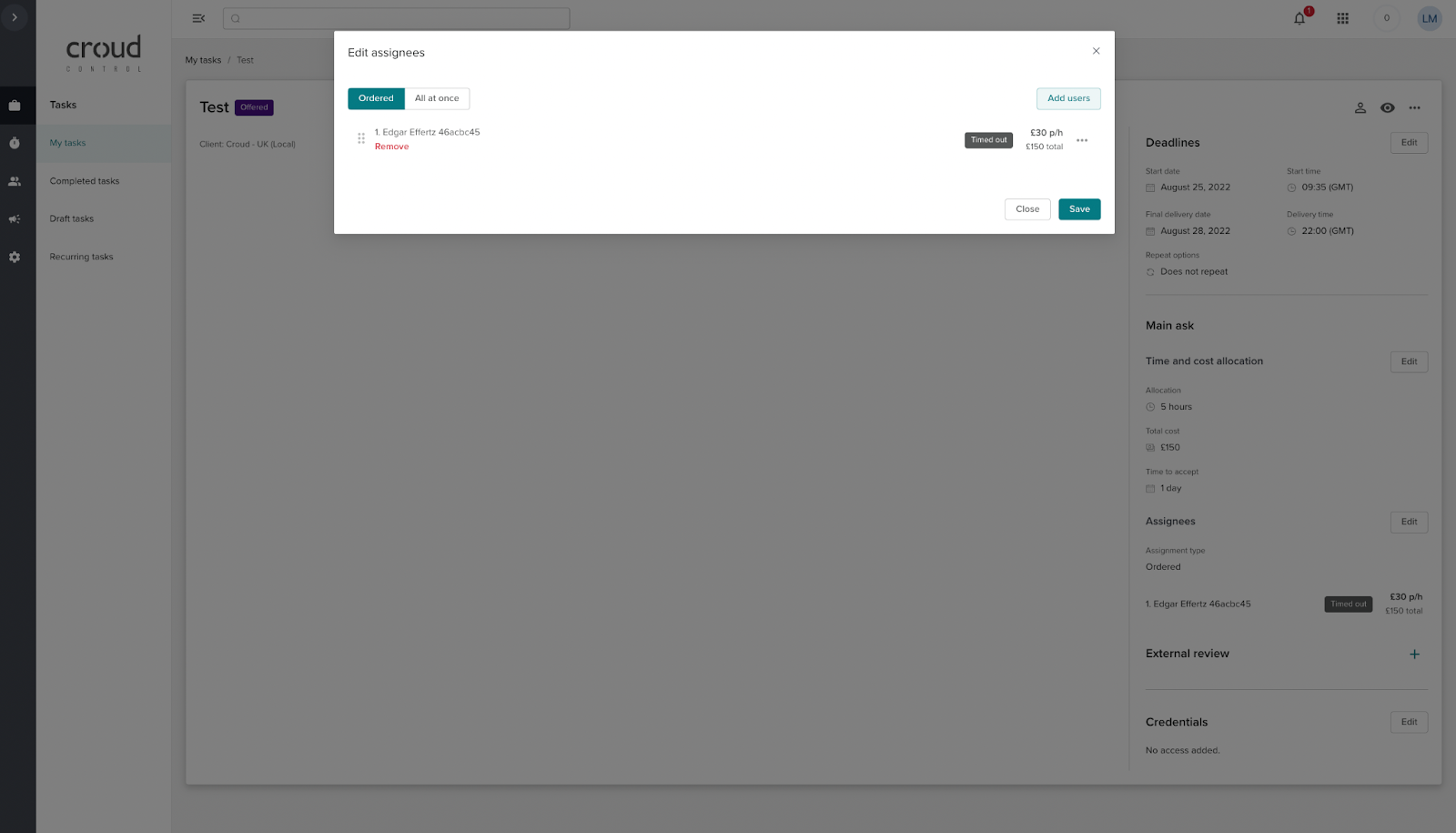
To add users to the task press the ‘Add user’ button. This will open the croudie picker. On the edit assignees screen, users have the option to choose how the task is sent to croudies.
By clicking on “In selected order”, it will offer the task to the first person in the list and if they don’t accept before the task acceptance deadline or decline the task it will move to the next person in the list.
Open tasks, it will assign the task to all Croudies almost at the same time (Croudies will have a short assignment window based on certain factors before the task opens up to someone else).
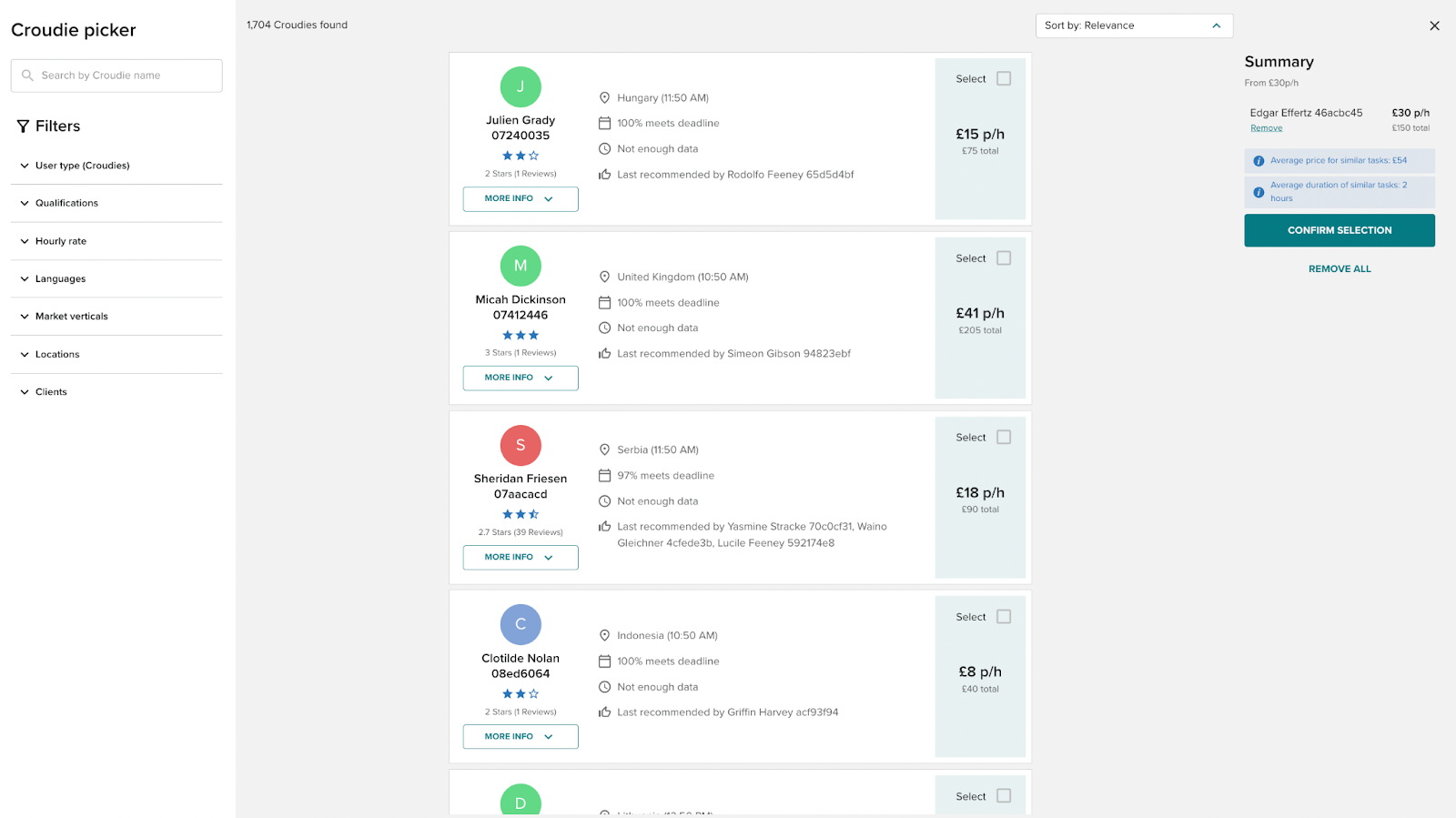
Within the Croudie picker, you can filter for:
Name
Hourly rate
Language skills
Qualifications (from our Croud Academy)
Location
Previous client experience
Croudie or SuperCroud (e.g if you wanted to assign another teammate a Review task).
Each Croudie will be shown in order of relevancy. The relevance score is an algorithm that takes into account 30 different data points such as rating, task submission deadline, task template rating, and if the user worked on the client before.
This is to provide you with the most relevant pool of Croudies to choose from. Once you have filtered for the Croudies you need for the task, you can choose to view more information about the Croudie by clicking on the down arrow.