
To access your tasks travel to the My Task’ page. From there users can access a task and see the tasks timeline.
You will have the option to message the timeline and by doing so, it will show to all users who are assigned to the task.
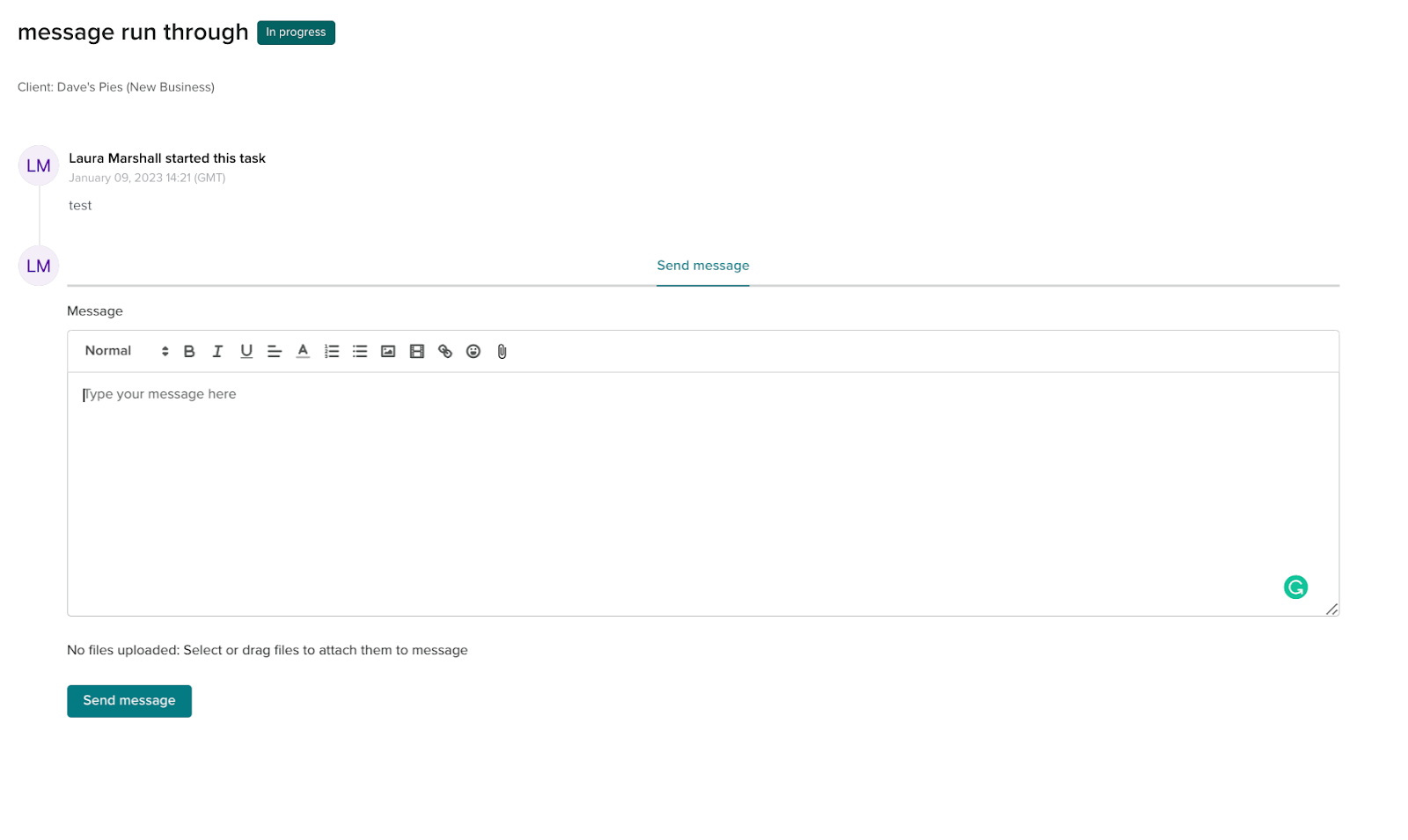
Another option that is accessed from here is the option to attach files.

The paper clip icon will open file explorer and allow users to select a file to upload.
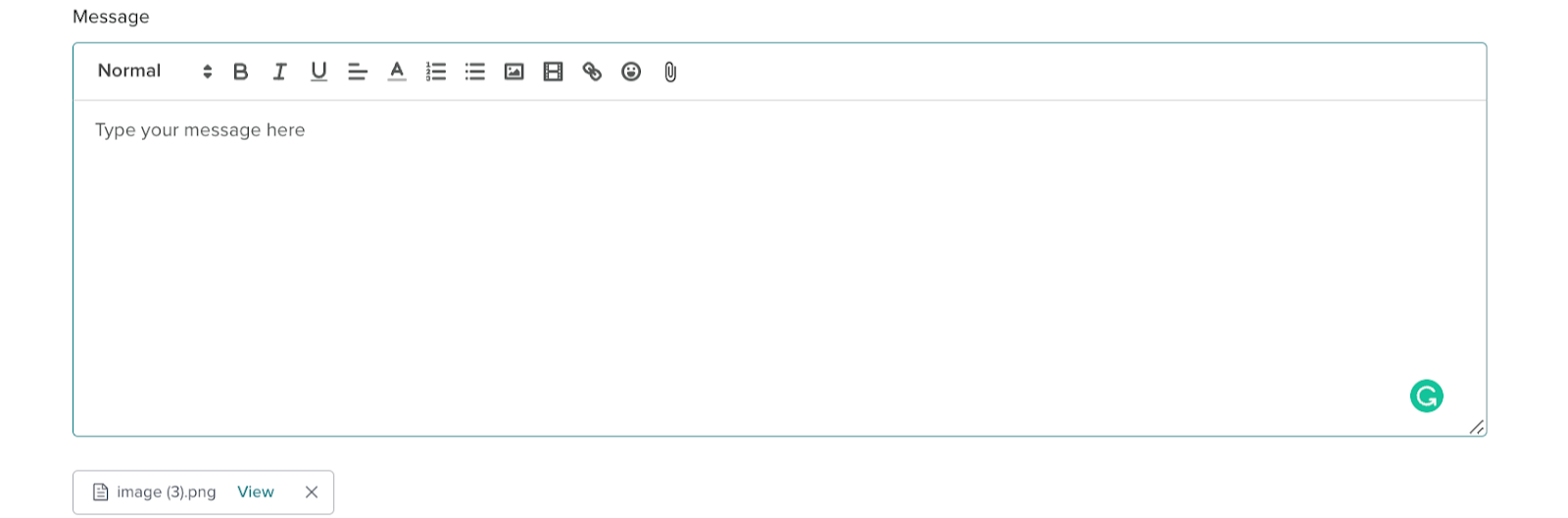
The file will show here when added.
Once you send a message, an email notification is sent to the Croudie(s) to notify them. Similarly, once they reply - you will get an email notification.
Messaging the Croudie within the job timeline in Croud Control, keeps communication within Croud Control and reduces the need to send separate emails and chat messages.