
When you have a lead that could be a new client, you need to add the prospective client to Croud Control so that you and the rest of the team can journal and send tasks against the client.
To create a client in Croud Control, follow these steps:
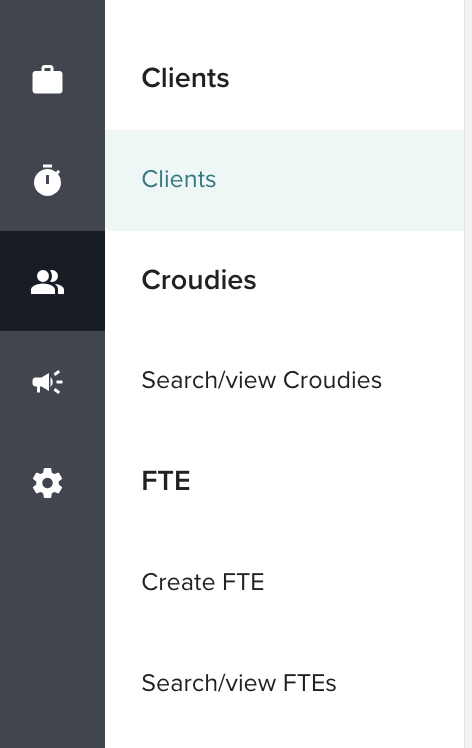
- In the main navigation bar, click User Manager > Client
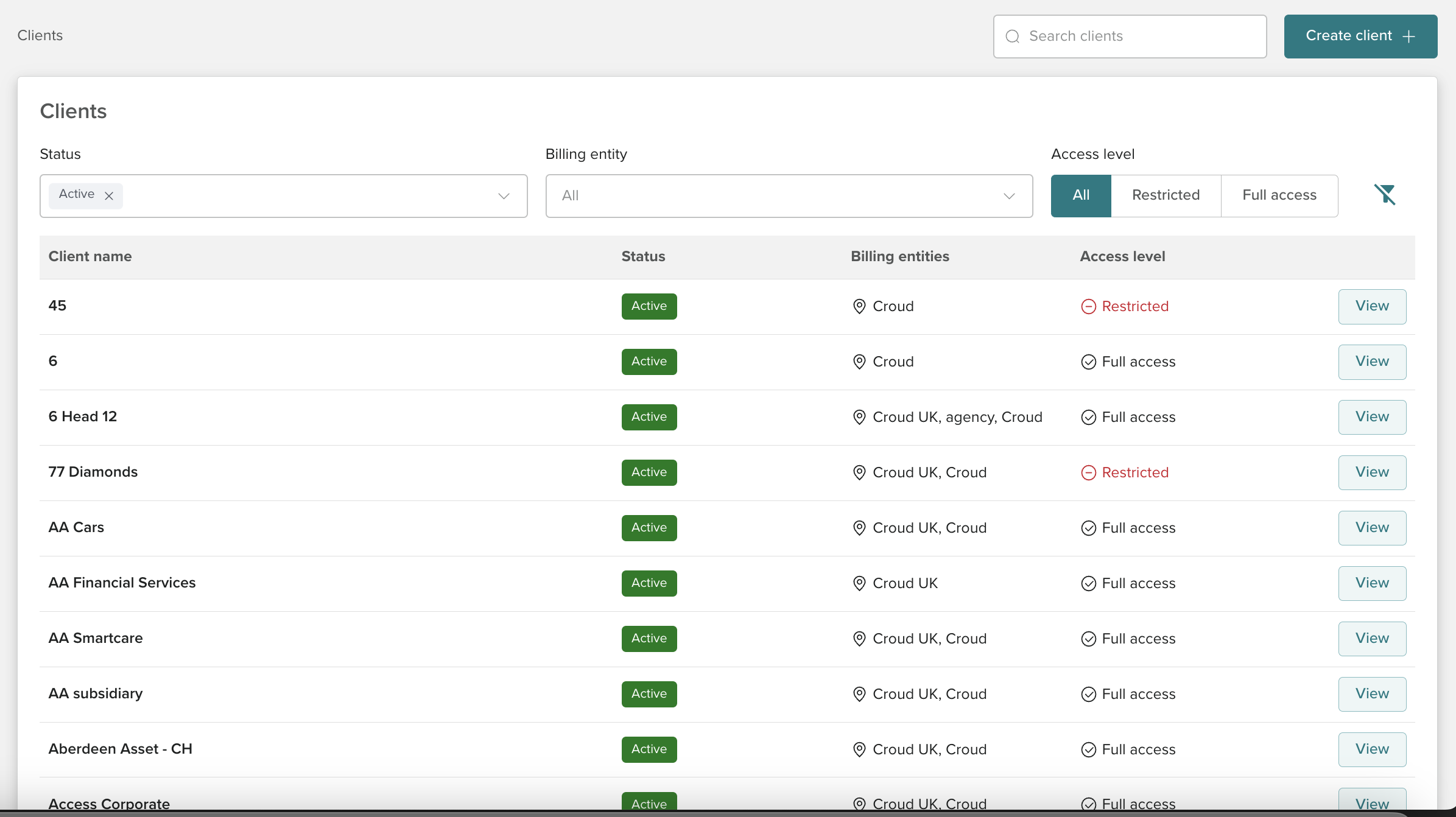
2. This should show the Client page which displays all clients.
3. At the top of the page, next to the client search bar, click the Create Client button.
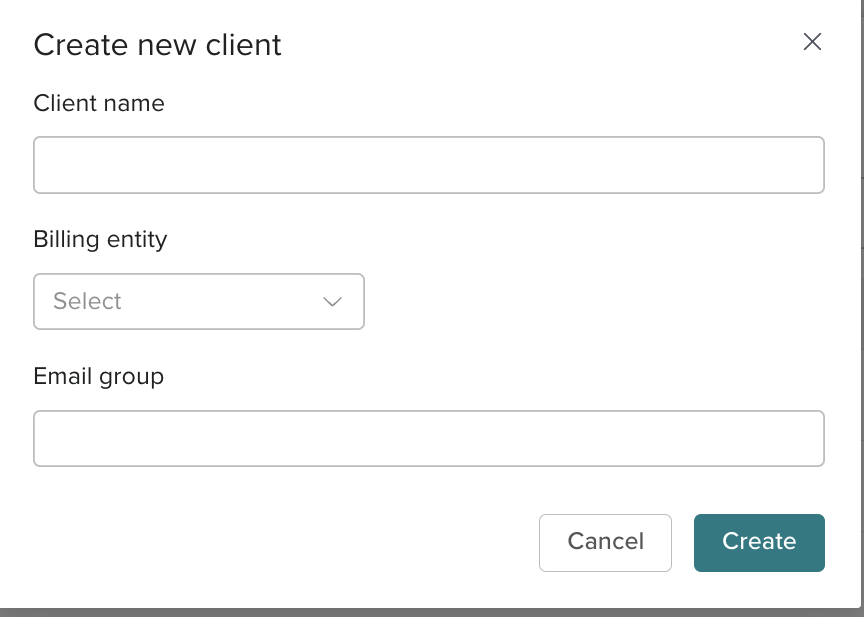
4. Fill out all parts of the Create Client form. The Email Group field must be formatted as an email address.
5. Click Save.
The new client will be added to Croud Control and you will be able to journal and send tasks against the pending client.
Here are some additional tips for creating a client in Croud Control:
- The Client Name field should be the name of the company or organization.
- The Billing Entity should be an entity where billing is associated with
- The Email Group field should be the email address of the person who will be the main contact for the client.